A practical, detailed handbook for Finance, Accounting, and RevOps teams
Integrating a subscription billing platform with QuickBooks Online (QBO) sounds like a simple data-sync exercise. In reality, it’s one of the most operationally sensitive connections in any SaaS company’s finance stack. One bad mapping, one unmapped customer, or one attempt to post into a closed accounting period can derail your month-end close faster than any pricing experiment ever will.
This guide consolidates the essential concepts you need to understand before turning on a billing-to-QBO integration. It explains how objects map, why errors happen, how refunds behave, and how journal entries maintain sequence integrity.
1. What the Billing–QBO Integration Actually Does
Before diving into the mechanics, it’s important to understand the purpose of the integration.
A subscription billing system generates operational transactions with every accounting detail about the revenue side of your business:
- Invoices
- Payments
- Credits
- Refunds
- Usage charges
- Adjustments
- Journal entries for revenue recognition or deferred revenue
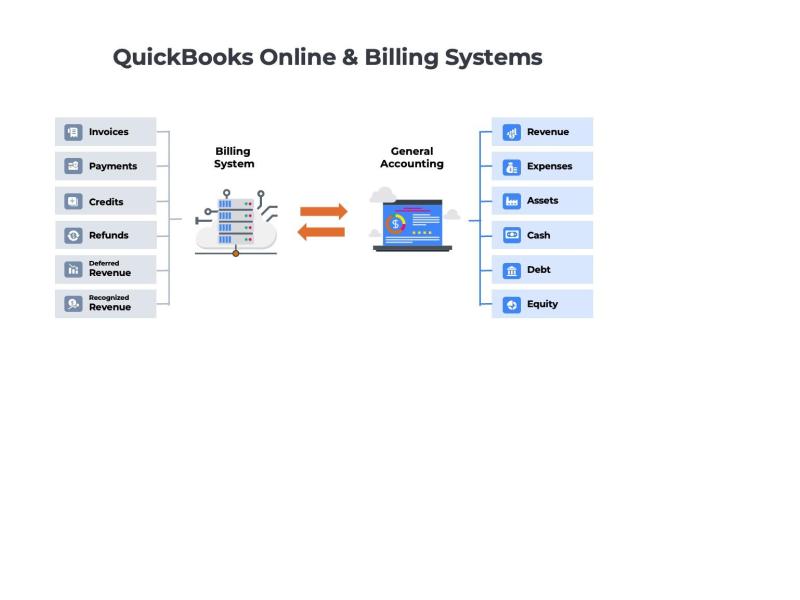
QuickBooks Online, on the other hand, serves as your general ledger, capturing revenue, expenses, assets, cash, debt, and equity positions. It is also the source for the three critical financial statements – the income statement, balance sheet, and cash flow statement. Revenue is often the most closely analyzed aspect of a company’s financials and it is therefore critical that the right details get from your SaaS billing system into QuickBooks Online.
A strong integration ensures that:
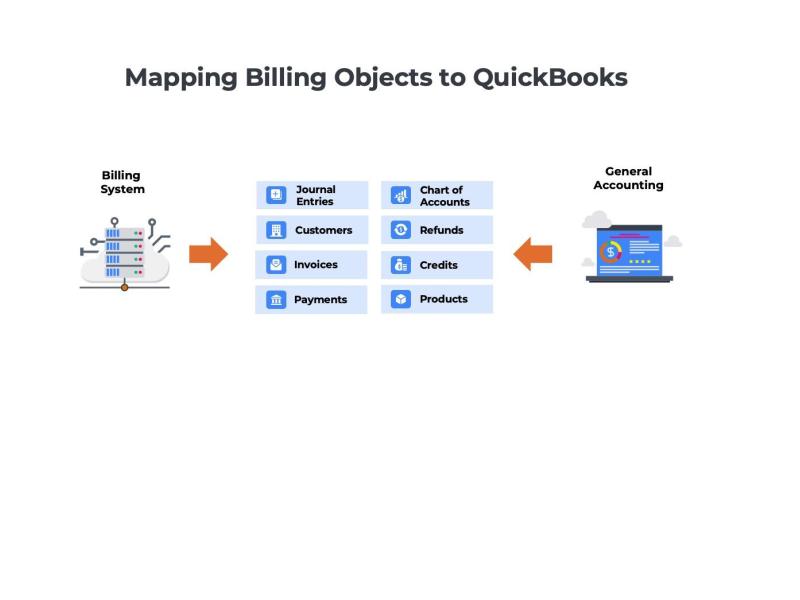
- Every customer record in billing has a matching entity in QBO
- Every invoice generated operationally flows through to the GL
- Payments recorded in billing reconcile correctly in QBO
- Credits and refunds carry the correct accounting impact
- Journal entries follow proper numbering and period rules
- Nothing is manually re-entered (because manual re-entry is where errors multiply)
Think of billing as the subledger and QBO as the central financial truth. The integration is the bridge.
 Three Types of Integration
QuickBooks Online integrations generally follow three patterns, each offering a different balance of automation and control. The simplest approach relies on exporting summary journal entries at month-end and importing them into QBO, which keeps systems decoupled but adds manual work during close. A more automated model synchronizes all journal entries while leaving invoices, payments, and credits in the source system, effectively using QBO as the general ledger rather than an operational system. The most comprehensive integration synchronizes both operational transactions and revenue-related journal entries, automatically creating invoices, payments, credits, and revenue recognition journals in QBO. In deferred revenue scenarios, accurate results depend on precise account mapping, particularly ensuring deferred revenue accounts are configured correctly so invoices and subsequent revenue recognition entries post cleanly.
2. Understanding QuickBooks IDs (QBO IDs)
QBO IDs is one of the areas where most teams get tripped up, so we’ll go slowly.
Whenever an object is created or matched in QBO, QuickBooks assigns it an internal ID.
Your billing system keeps a reference to this ID so it can continue syncing future transactions without creating duplicates.
Example:
1.You create a customer called “Acme Corp” in your billing system.
2. The integration syncs it to QBO.
3. QBO assigns “Acme Corp” a unique customer ID.
4. Your billing platform stores that ID for all future invoices, payments, and credits.
If the ID is missing, wrong, or mismatched, you run into:
- Duplicate customer creation
- Invoices going to the wrong customer
- Payments that fail to apply
- Credit memos orphaned with no matching entity
Many of your accounting headaches will disappear the moment your customer ID mapping is consistent.
3. The Anatomy of QuickBooks Error Messaging
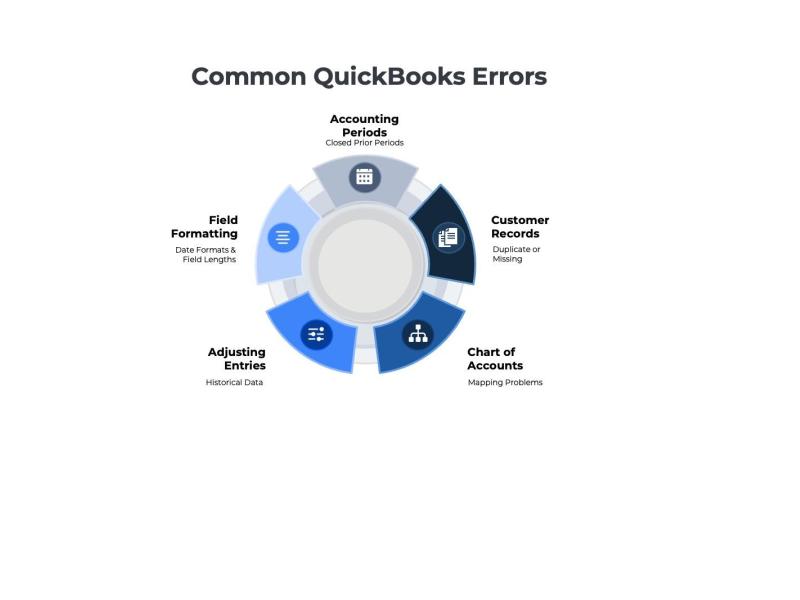
When something fails to sync into QuickBooks, QBO responds with an error. Some of them are readable. Many are not. But underneath the messy phrasing, almost every error fits into one of the categories below.
1. Closed Accounting Periods
If your controller has locked a period, QBO will reject any transaction dated inside it.
This is the most common reason invoices, payments, refunds, and journals fail.
Why it matters:
Closed periods preserve financial integrity. QBO correctly refuses to rewrite history.
Fix:
- Change the transaction date to an open period, or
- Reopen the period (rarely preferred)
2. Duplicate or Missing Customer Records
If the billing system tries to sync a transaction to a customer that QBO does not recognize, the sync fails.
Common causes:
- Customer created in billing but never synced
- Customer merged in QBO but not updated on the billing side
- Manual edits in QBO creating mismatches
3. Chart-of-Accounts Mapping Problems
Every invoice line and journal entry needs to be placed in the correct account in your general ledger. If a mapped account doesn’t exist in QBO, the sync fails.
Symptoms:
- “Account not found”
- “Invalid account type for this transaction”
Typical root causes:
- Renamed accounts
- Deleted accounts
- Inconsistent mapping between item types and GL accounts
4. Unsupported Edits
Some QBO objects cannot be edited after creation (e.g., certain posted invoices).
If the billing system tries to update something QBO considers locked, the sync breaks.
Fix:
Use adjusting entries instead of modifying historical data.
5. Invalid Field Formatting
QBO rejects transactions with:
- Characters it doesn’t support
- Incorrect date formats
- Numeric fields containing letters
- Fields exceeding the maximum allowed length
A surprisingly high number of sync failures come down to something mundane like an extra dash in the invoice number.
4. How Refund Handling Works Across Both Systems
Refunds are the most misunderstood part of the SaaS billing and QBO integration. Many finance teams often expect refunds to behave like “negative payments.” However, that is not how QBO treats them.
A refund typically consists of:
1. A reversal of the original payment
2. A refund transaction
3. A credit memo or adjustment
4. One or more journal entries to maintain accounting accuracy
And when accounting periods are locked, refund behavior changes again.
Open Period Refunds
When the period is open, the billing system can usually:
- Reverse the payment
- Issue the refund
- Generate the required accounting entries
- Sync everything cleanly into QBO
Closed Period Refunds
When the original payment sits in a locked period, you cannot “reach back” and reverse it.
Instead, the accounting system requires a controlled compensating entry in an open period.
This preserves prior financial statements while still accounting for the return of cash.
Why refund handling is sensitive
Incorrect refund logic can:
- Understate revenue
- Overstate liabilities
- Misalign cash and AR balances
- Create audit exceptions
- Trigger reconciliation gaps
A billing-to-QBO integration must handle refunds with respect for the accounting calendar — otherwise the GL becomes unreliable.
5. Controlled Journal Entry Numbering in QBO
QuickBooks Online enforces journal-entry sequencing much more strictly than many teams realize. If your billing system generates journal entries, they must follow QBO’s rules about:
- Sequential numbering
- Numeric-only or alphanumeric formats
- Avoiding duplicates
- Respecting manually created journal entries
- Maintaining chronological order where required
A mismatch triggers errors like:
- “Duplicate Document Number”
- “Transaction number already exists”
- “Invalid journal number format”
To avoid this:
- Decide on your numbering convention early
- Keep manual QBO journals in their own sequence ranges
- Prevent ad hoc journals that could “block” automated sequences
Consistent sequence handling is essential for audit trails.
6. How Transactions Flow From Billing Into QBO
Let’s walk through the full lifecycle, because understanding the flow makes troubleshooting easier.
Step 1: An event occurs in the billing system
An invoice, payment, refund, credit memo, or charge is generated.
Step 2: The billing system validates mapping
It checks:
- Customer mapping
- Item mapping
- Chart-of-accounts mapping
- Tax configuration
- Payment method rules
- Period rules
- Journal numbering rules
Step 3: The billing system creates the accounting record
This might be:
- An invoice
- A payment
- A credit memo
- A refund
- A journal entry
- A revenue schedule posting
Step 4: The system attempts to sync the transaction to QBO
It pushes the transaction through the integration layer.
Step 5: QBO evaluates the transaction
If the data violates any rule — closed period, missing ID, wrong account — the sync fails.
If everything checks out, the transaction is accepted.
Step 6: The accounting team performs reconciliation
New invoices, payment activity, AR aging, and GL balances all need to remain aligned.
A good integration reduces reconciliation time dramatically.
Summary: The Most Common Pitfalls in Billing–QBO Integrations
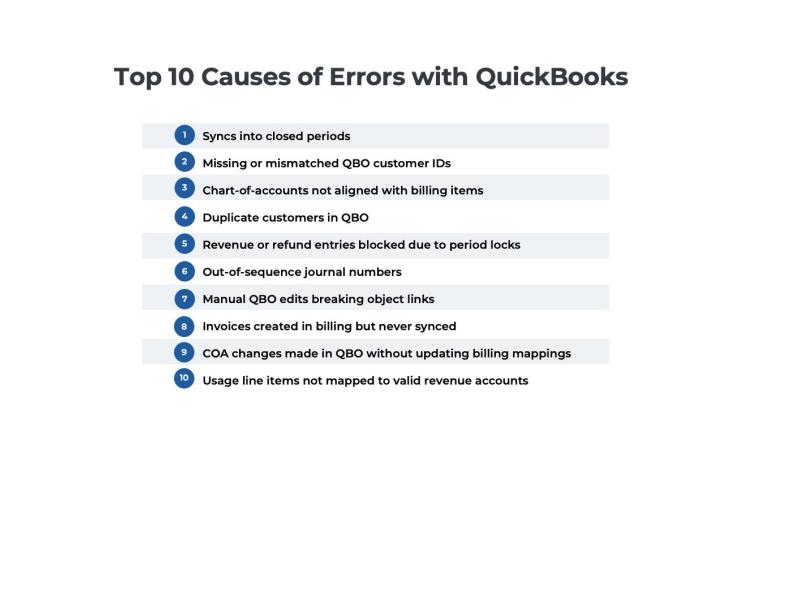
Nearly every operational issue stems from one of these patterns:
- Syncs into closed periods
- Missing or mismatched QBO customer IDs
- Chart-of-accounts not aligned with billing items
- Duplicate customers in QBO
- Revenue or refund entries blocked due to period locks
- Out-of-sequence journal numbers
- Manual QBO edits breaking object links
- Invoices created in billing but never synced
- COA changes made in QBO without updating billing mappings
- Usage line items not mapped to valid revenue accounts
These aren’t “rare bugs” — they’re the predictable consequences of mismatched system configurations.
Practical Tips for Running a Smooth Integration
Here’s the distilled wisdom that Finance and RevOps teams always wish they had earlier:
- Lock your Chart of Accounts before you turn on syncing
- Don’t manually rename QBO accounts after mapping
- Merge duplicate customers instead of creating “Acme Corp (2)”
- Validate one invoice and one refund manually before scaling
- Review sync errors weekly
- Keep controlled journal numbering consistent
- Don’t edit synced invoices directly in QBO
- Always check the accounting calendar when troubleshooting
- Keep tax settings consistent across both systems
- Document any exceptions for audit season — future you will thank you
These habits reduce 90% of integration pain.
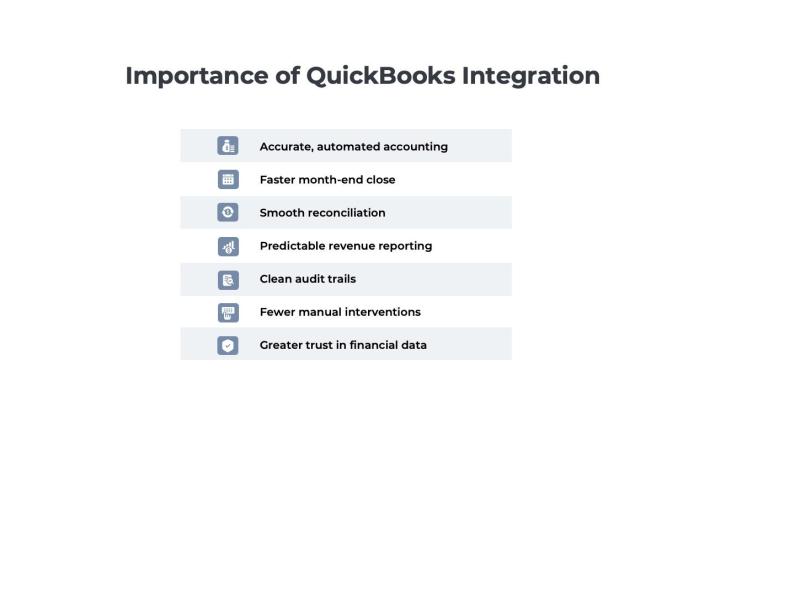
Why This Integration Matters
Final Summary
This guide covered the core concepts behind integrating a SaaS billing platform with QuickBooks Online:
- How QBO IDs anchor object mapping
- How to read and resolve common QBO error messages
- How refunds behave across open and closed periods
- How journal entry numbering affects syncs
- How transaction flows operate end-to-end
- What pitfalls to avoid
- How to keep the integration healthy over time
Once you understand these pieces, the entire billing-to-QBO workflow becomes predictable, stable, and far easier to operate at scale.